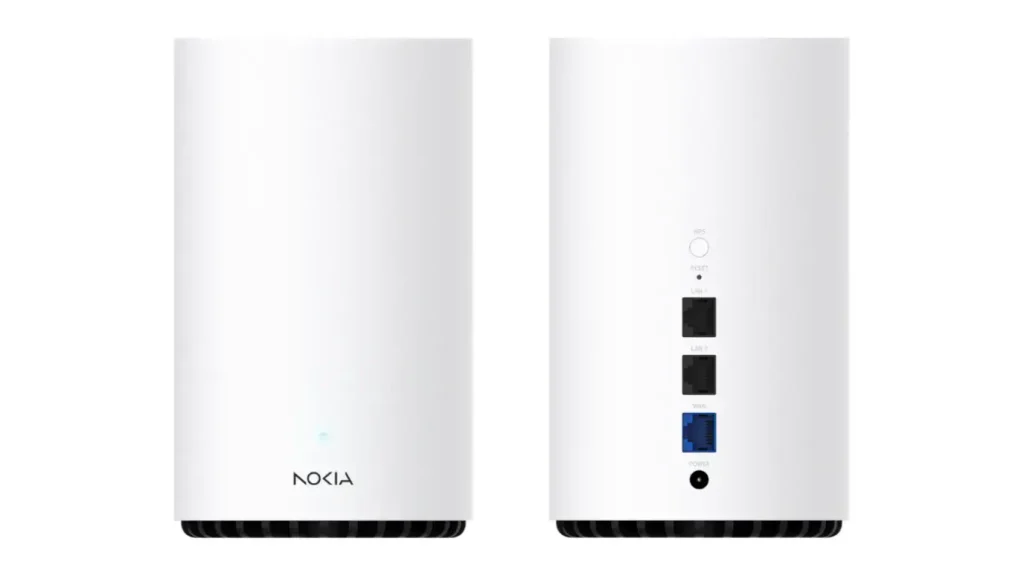
Product Overview
The Nokia Beacon 3.1 is a Wi-Fi router designed to provide a stable and reliable connection throughout the home. It allows multiple devices to connect and can be integrated into a mesh Wi-Fi system with other Beacon units to extend coverage.
- Wi-Fi 6 (802.11ax) for good performance and better device management
- Operates on 2.4 GHz and 5 GHz bands
- Can be used in a mesh Wi-Fi system to extend coverage
- Smooth streaming and video calls
- Simple home network management
The Beacon 3.1 is Wi-Fi 6 certified and also supports previous Wi-Fi standards (a/b/g/n/ac).
Product FAQs
What do the LED colours on the Nokia Beacon mean?
• Solid teal/blue-green: Good connection
• Solid white: Starting up
• Flashing white (steady): Starting up or updating
• Slow flashing white: Connecting
• Fast flashing white: Connection established
• Solid yellow: Weak connection → move/reposition
• Solid red: No Internet connection
• Flashing red: Factory reset triggered
How do I add an Extender (additional Beacon)?
1. In the app, go to Network.
2. Then select the Access Point tab and choose Add WiFi Access Point.
3. Choose the connection type: wired (Ethernet) or tap Next for Wi-Fi.
4. Read the installation tips, then tap Next.
5. Scan the QR code located under the extender.
6. Plug in the power and turn on the extender.
7. Test the extender’s placement by walking to the desired location with your mobile phone, then tap Next and start the test so the router can evaluate and validate the location.
8. Wait for the setup to complete.
I don’t have Internet access - what should I do? (Nokia Beacon router)
• Make sure your Nokia router is powered on and functioning (Blue LED).
• Ensure the device you are trying to use is up to date and functional.
• If the SSID is not visible, try connecting another device.
How do I connect Wi-Fi devices to my Nokia router?
There are two ways to connect devices to the Nokia router:
1. Using the SSID and Wi-Fi password
Note: You can find the SSID and password on the sticker under your Nokia router.
2. Using the WPS button located on the back of the router to start the Protected Wi-Fi Setup process.
Ethernet Connection
You can connect up to two Gigabit Ethernet devices by plugging the Ethernet network cable into one of the two Gigabit Ethernet LAN ports on the back of your Nokia router.
Learn how to restart your gateway or reset it to factory settings using the steps below
Restart the Nokia Router:
• The power button is located at the bottom of your router.
• Toggle the switch to turn it off for 5 seconds, then toggle it again to turn it back on.
• The device will restart and keep all your configured settings.
Reset the Gateway to Factory Settings:
• The reset button is located on the back of the router.
• Use a pin to press and hold the reset button until the router LED flashes red.
• The device will reset to factory default settings and erase all configured settings.
• Your router may restart twice during a factory reset.
How do I enable the guest network?
• Open the Nokia Wi-Fi app
• Go to the main menu and select “Guest Network”
• Enable “Guest Network”
• Customize the guest network name and password
• Set the activation duration if desired (permanent or temporary)
• Save your changes
How do I change the network name and password on your Nokia router?
• In the app, tap your SSID, then tap Edit.
• Tap the pencil icon in the top right corner, then tap Continue when prompted.
• Enter the new SSID and/or new password.
• Tap Save (brief disconnection/reconnection may occur).
What is the difference between the main network and the guest network?
The guest network provides an isolated Internet connection for your visitors. Devices connected to the guest network can access the Internet but cannot see or access devices on your main network, protecting your personal data and household devices.
How do I view and rename connected devices? (Nokia Beacon router)
• In the app, open Devices.
• Tap a device to view its information.
• Tap Edit to rename it.
How do I set up parental controls?
• Open the Nokia Wi-Fi app
• Select “Profiles” from the menu
• Create a new profile and assign the desired name
• Choose the device(s) you want to manage
• Set Internet access schedules
• Block website categories if needed
• Enable the restrictions and save
How do I block a device from the network?
• In the Nokia Wi-Fi app, go to “Devices”
• Select the device you want to block
• Tap “Block access” or “Pause”
• Confirm your choice
• The device will be disconnected immediately
Why is my Internet connection slow?
Checks to perform:
• Run a speed test directly from your Nokia router using the app to verify if the issue comes from us
• Restart your Nokia router and your modem
• Review how many devices are connected in the app
• Ensure your router is properly placed (avoid thick walls, mirrors, electronics)
• Check if a firmware update is available in the app
• Try connecting your device via Ethernet to isolate the issue
How do I run a speed test from the app? (Nokia Beacon router)
• Open the Nokia Wi-Fi app
• Go to Speed Test
• Tap Start
• Review current and historical results
How do I get alerted when a new device connects? (Nokia Beacon router)
• Enable connection notifications
• Choose the mode: by network (approval required) or by device (based on schedules)