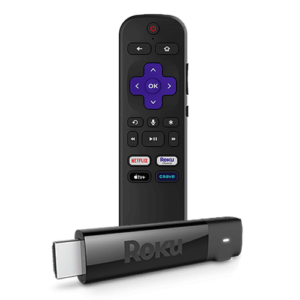
Product Overview
The Roku Streaming Stick is a compact device that plugs directly into a TV’s HDMI port to stream online content. It provides easy access to many streaming platforms and hundreds of free or paid channels.
- HD or 4K streaming, depending on the model
- Dual-band Wi-Fi (2.4 GHz and 5 GHz – Wi-Fi 5 / 802.11ac)
- Access to many streaming apps and free channels
- Simple installation directly into the TV’s HDMI port
- Remote control with voice commands and volume control
The Roku Streaming Stick 4K uses a dual-band 802.11ac Wi-Fi connection (2.4 GHz and 5 GHz) for high-quality video streaming.
Product FAQs
Lorem ipsum dolor sit amet, consectetur adipiscing elit. Morbi at urna sit amet libero vestibulum fringilla sit amet sed sapien. Morbi sed condimentum orci.
My MikroTik router is on but I no longer have Internet, what should I do?
- Check the connections: Make sure all cables are properly connected between the fibre modem and the router. The Ethernet cable coming from the modem must be plugged into port 1 (often labelled Internet) on the MikroTik router.
- Check the lights: The blue light indicates that the router has power. The other bright green lights confirm that the Internet connection is working normally. If these lights are off or show a different colour, it means the Internet connection is not working.
- Unplug the router and modem from power for 30 seconds, then plug them back in and wait 2–3 minutes for the lights to stabilize. Then check your devices to see if you have Internet.
- If the issue continues, contact Technical Support for further assistance.
All my devices show “connected without Internet”
- Check the connections: Make sure all cables are properly connected between the fibre modem and the router. The Ethernet cable coming from the modem must be plugged into port 1 (often labelled Internet) on the MikroTik router.
- Check the lights: The blue light indicates the router is powered. The other bright green lights confirm that the Internet connection is working. If these lights are off or display a different colour, the Internet is not working.
- Unplug the router and modem for 30 seconds, then plug them back in and wait 2–3 minutes for the lights to stabilize. Check again if you have Internet.
- Connect via Ethernet: Plug your computer directly into one of the Ethernet ports (2, 3, 4, or 5) on the router using a network cable. Check again if you have Internet.
- If the issue continues, contact Technical Support
The Internet (WAN) light is off
- Check the connections: Make sure all cables are properly connected between the fibre modem and the router. The Ethernet cable from the modem must be plugged into port 1 (Internet).
- Test the cable: Unplug and reconnect the cable on both ends, then try another Ethernet cable to ensure the cable is not faulty.
- Power cycle: Unplug the router and modem for 30 seconds, reconnect them, and wait 2–3 minutes for the lights to stabilize. Check again for Internet.
- If the problem continues, contact Technical Support for further assistance.
I no longer see my Wi-Fi network
- Test another device: Try another device (smartphone, tablet, laptop) and check if the issue appears on it as well. If all devices have the same issue, the problem is likely with the router or Internet service.
- Restart the router:
If the issue is on all devices, unplug the router for 30 seconds, plug it back in, and wait 2–3 minutes for the lights to stabilize. Then check if the Wi-Fi network appears. - If the issue is only on one specific device, restart that device and check again.
- If the issue continues, contact Technical Support.
How do I change the Wi-Fi password?
- Find the IP address of your router in your device’s network settings (phone, computer, or tablet) to connect via web browser.
(The default is often 192.168.88.1.) - Enter this address into your browser’s address bar and log in using “user” as the username and the router’s serial number (SN) as the password (found by pulling the small label behind the router).
- Once inside the router interface, click on Wi-Fi. You will see two bands: wifi1 and wifi2. Click either band, scroll down to the Security section, and in the Passphrase field, change the password. Then click Apply, then OK. Repeat the same steps for the second band to apply the new password to both networks.
- If you have difficulties changing your password, contact Technical Support for help.
How do I change the name of my Wi-Fi network?
- 1. Find the IP address of your router in your device’s network settings (default often 192.168.88.1).
- Enter this address into your browser and log in using “user” and the router’s serial number (SN) as the password.
- After opening the router interface, click on WiFi. You will see two bands: wifi1 and wifi2. Click one of the bands, then in the General section, change the SSID field (this is your Wi-Fi name). Click Apply, then OK. Repeat the same steps for the second band to apply the new name to both networks.
- If you have difficulties, contact Technical Support.
How do I separate my two Wi-Fi bands (2.4GHz and 5.8GHz)?
- 1. Find the IP address of your router (default: 192.168.88.1).
- Enter this address in your browser and log in using “user” + router SN.
- Once in the interface, click Wi-Fi. You will see wifi1 and wifi2. Click the first band and in the General section, rename the SSID to give it a distinct name (e.g. “Home_2.4G”). Click Apply, then OK. Repeat the process for the second band with a different name (e.g. “Home_5G”). This separates the networks so you can choose which one to connect to manually.
- If you have difficulties, contact Technical Support.
My Wi-Fi is slow or disconnects often
- 1. Make sure your device is close to the router and nothing is blocking the signal (walls, microwaves, etc.), then run a speed test on speedtest.net.
- Restart the modem and router, wait 2–3 minutes for the lights to stabilize, then test again.
- Try connecting your devices to the 2.4GHz band for better range.
- Plug a computer directly into the router and test on speedtest.net to check whether the issue is Wi-Fi related or Internet-related.
- If the issue continues, contact Technical Support for a full check-up.
How do I properly restart my MikroTik router?
- 1. Unplug the router’s power cable from the electrical outlet.
- Wait 30 seconds.
- Plug it back in and wait 2–3 minutes for the lights to stabilize.
How do I check if my Internet speed is good?
- 1. Open a browser (Chrome, Safari, Edge, etc.) and go to speedtest.net.
- Click Go to start the speed test.
- Note your download and upload speeds. If they match your service plan, everything is normal.
- If the speed is low, repeat the test with a computer connected by Ethernet directly to the router.
- If the speed is still low, contact Technical Support.
How do I reset my MikroTik router?
You should never reset the MikroTik router.
If needed, please contact NIVO Technical Support.
How do I know who is connected to my Wi-Fi?
- Find your router’s IP address (default often 192.168.88.1).
- Enter the address into your browser and log in using “user” + router SN.
- Once in the router interface, in the left menu, click WiFi. At the top of the page, select the Registration tab. You will see the full list of devices currently connected to your Wi-Fi network, along with their MAC addresses.
- If you have difficulties, contact Technical Support.
How do I block a device using my Wi-Fi?
- Note the MAC address from the Registration Table.
- Go to Wireless > Access List > Add New.
- Paste the MAC address and check Deny.
- Click Apply / OK.
My phone says “Incorrect password”
- 1. Forget/delete the saved Wi-Fi network on your device.
- Restart the phone.
- Enter the password manually again.
- If the issue continues, restart the router.
My phone says “Incorrect password”
- Yes, in bridge mode.
- Connect the second router using an Ethernet cable.
- Disable DHCP on the second device.
- Let the MikroTik router handle IP address assignment.
- If you are unsure how to do this, contact Technical Support.